
differences between CZ-Pdf2Txt /Simple/for Acrobat Reader/COM
CZ-Pdf2Txt Simple for acrobat reader
CZ-Pdf2Txt COM for acrobat reader
CZ-Pdf2Txt for acrobat reader
CZ-Pdf2Txt Simple
CZ-Pdf2Txt COM
CZ-Pdf2Txt
| Products->CZ-Pdf2Txt COM: |
| CZ-Pdf2Txt COM For Acrobat V2.0 batch pdf converter that convert pdf to text, this COM component can be called from VB, VC, DELPHI. |
|
About
CZ-Pdf2Txt COM is a COM component/object designed to assist you, the developer, to quickly add a pdf to text conversion utility to your application. It can be called from VB, VC, DELPHI. You can use it to convert pdf to text! and can watch source file folder and convert new uploading ms word, RTF, text or html documents to PDF files automatically. you can convert a lot of pdf files on the fly to text files once time! saving your time!
This converter must install Adobe Acrobat Edit Version, if you have not Adobe Acrobat Edit Version, no problem, you have another choice, you can use CZ-Pdf2Txt COM for acrobat reader that no longer need the expensive Adobe Acrobat Edit Version, you only install free Adobe Acrobat Reader, saving your money.
Key Features
A. support COM interface and command line arguments, can be called from VB, VC, DELPHI.
B. Convert table in pdf to delimit table text, you can appoint tab, comma, blank, semicolon, or other char as the delimit symbol, then you can copy table text and import it to excel or database.
C. can watch source file folder and convert new uploading PDF documents to Text files automatically. While your user upload PDF documents to your website, then this folder watcher can automatically convert them into Text format.
D. batch convert pdf to text, you can convert thousands of pdf files at one time, saving your time!
E. can add the files in subfolders to convert.
F. supports drag files and folders from your desktop.
G. can create run log file.
H. support convert current pdf and selected pages.
I. support PDF written in multi-byte Languages.
J. Preserves original document layout.
System Requirements
1. You will need a Pentium 150 PC or higher, 16MB RAM or more.
2. The operating system should be 32 bit or 64 bit Win95, Win98, Win2000, WinNT 4.0, WinME, WinXp, Win2003, Win Vista, Win 7, Win 8, Win 2008, Win 2012..
3. Of course, you must install Adobe Acrobat Edit Version 4.0 or 5.0 above, Please notice, CZ-Pdf2Txt COM don't support any version of free Acrobat Reader! it only support the full function Adobe Acrobat.
What's New In CZ-Pdf2Txt ?
2004-04-02 release CZ-Pdf2Txt COM build040402, support more output text file formats (text file, CSV (comma delimited) file, tab text (tab delimited) file, semicolon text (semicolon delimited) file), and update command line and com interface.
2003-06-04 release CZ-Pdf2Txt COM V2.0 Build030604, add folder watcher that watch source file path and convert new uploading PDF documents to Text files automatically. While your user upload PDF documents to your website, then this folder watcher can automatically convert them into Text format.
2002-09-16 Release CZ-Pdf2Txt COM v1.0 build020916, a COM component/object designed to assist you, the developer, to quickly add a pdf to text conversion utility to your application. It can be called from VB, VC, DELPHI.
Please click here to see detail setup guide
Please click here to see detail usage guide
 Please click below button to buy CZ-Pdf2Txt COM now, 100% Secure on-line
Can CZ-Pdf2Txt COM support ASP?
No, CZ-Pdf2Txt COM do not support ASP, but you can use the folder watcher function that can convert new files in source file path to destination file path while new files are copied to source file path, so you can use this function to convert your PDF documents that are uploaded to the website to text files.
Why not I find the "ConvertZone" menu?
All of our plug-ins require full Acrobat Edit Version; they will not work with the free Reader. If you have a full version of Acrobat, please make sure the install path contains acrobat plug-ins.
I have installed CZ-Pdf2Txt COM, but I am unable to get ConvertZone menu after loading into Acrobat 5?
You should do blew step to fix your problem:
1. check whether pdf2txtcom.api is installed to acrobat 5 plug-ins path, if yes, then goto No.2 step, otherwise, install again to right acrobat plug-ins path!
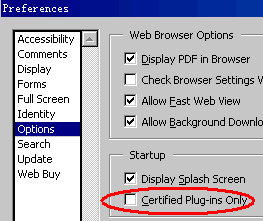
2. You should open acrobat 5, then click "Edit"->"Preferences" menu, goto "Options", to turn off "Certified Plug-ins Only" checkbox, please see blew screenshot, then CZ-Pdf2Txt COM can work OK.
How to convert protected Adobe Acrobat PDF files?
You can use "Advanced PDF Password Recovery", it can decrypt protected Adobe Acrobat PDF files, then you can use cz-pdf2txt to convert the decrypt pdf file to text file.
You can buy it from here.
How to install it?
The install is very easy, please see the following step:
1. you only run czxxx2xxx.exe, click "yes" button while displaying the dialog with "This will install cz-xxx2xxx, do you wish continue?"
2. click "next" button while displaying the dialog with "welcome to the ...."
3. select destination directory and click "next" button while displaying the dialog with "selection destination..."
4. click "next" button while displaying the dialog with "selection start..."
5. click "install" button while displaying the dialog with "ready to install"
6. click "finish" button while install finish.
How does "Manual Convert" work?
Please click "Manual Convert" tab sheet, you can simply press the "add files" button, then select the files to batch conversion list with ctrl or shift key, or click the "add folders" button to select the file folder. finally press the "convert" button, in a short time you will have finished conversion!
How does "Folder Watcher" work?
Please click "Folder Watcher" tab sheet, then click "Add Watch" button, and show a "Add Watch" dialog, and input "Source File Path", "destination File Path" and "File Filter", press "OK" button, you will add a file watch to folder watcher list. finally press "Start Watch" button, while the word documents are copied to the source path, then this folder watcher can automatically convert them into viewable html format of destination file path.
What are the differences between CZ-Pdf2Txt /Simple/for Acrobat Reader/COM?
Please click here to see compare table.
Does this converter convert quickly?
Yes, CZ-Pdf2Txt COM can quickly convert pdf files to text files, you can download the Free Demo and test the converting speed.
Does this plug-in support acrobat 6.0?
Yes, CZ-Pdf2Txt COM can support acrobat 6.0.
Is there a batch process available?
Yes. CZ-Pdf2Txt COM can support batch conversion from pdf to text.
We are evaluating your product for our software product. We would like to distribute your product with our product if it fits to our requirement. We are interested knowing price structure for distribution license, where we can bundle your product with our product.
You can choose to pay for each copy, or pay for Developer License. After you order the developer license, there is not any limit for the developer license, you can bundle our product to your application, then redistribute your application to anyone, any times, and anytime.
The fee of Developer License is $2699, and you can order it from http://www.convertzone.com/goto/order-cz-pdf2txt-com-dev.php
How we can redistribute your product with our product? If it is possible, What file we need to insert in our setup?
You only copy cz-pdf2txt.exe and czpdf2txt.dll and register.dat to your install path, and copy pdf2txtcom.api to acrobat plug-ins path, and copy pdf2txtcomdll.dll, zcdll.dll and jkdll.dll to windows system path, and use REGSVR32.EXE to register jkdll.dll and czpdf2txt.dll.
Do not worry about our products and our support, please see following reason:
1.Our customers mainly come from USA, they are pleased with our products and our service. Our customers are very pleased with our products and our service, and our clients have included thousands of companies come from different country, you can get proof from http://www.convertzone.com/clients.htm, also you can get praises from http://www.convertzone.com/reviews.htm, so do not worry about our products and our support, please believe us!
2.Our products are selled by that is well known paying service provider that allows to order securely online with a credit card, regsoft.com is our main internet agent, we have signed the Software Sales Agreement with regsoft.com.
Please notice, CZ-Pdf2Txt COM don't support any version of free Acrobat Reader! it only support the full function Adobe Acrobat.